
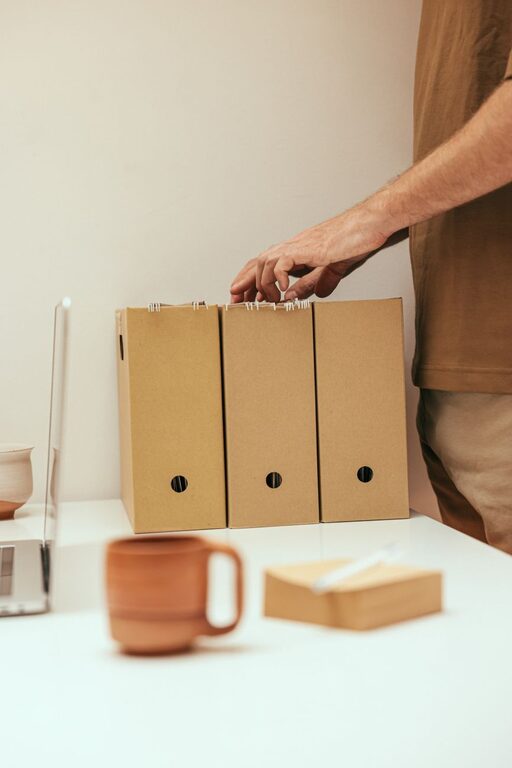
Keeping files organized can save time, reduce stress, and make everyday computer tasks much easier. A simple system helps you find documents quickly, avoid duplicate files, and keep important information from getting lost in a crowded desktop or downloads folder.
You do not need a complicated setup to get started. A few clear folders, consistent file names, and a regular cleanup routine can make a noticeable difference.
Start With a Quick File Cleanup
Before creating a new organization system, take a few minutes to review what you already have. Look through your desktop, Downloads folder, Documents folder, and other locations where files tend to collect.
Do not try to organize every file perfectly in one session. Begin by sorting files into a few basic groups:
– Keep: Files you use or need to save
– Delete: Files you no longer need
– Move: Files that belong in another folder
– Review: Files you are unsure about
The Review category is useful when you do not want to make rushed decisions. Create a folder called “To Review” and set a reminder to check it later. This keeps uncertain files from blocking your progress.
Start with obvious clutter, such as duplicate downloads, outdated installers, temporary screenshots, and files with names like “document1” or “new version.”
Create a Simple Folder Structure
A good folder system should be easy to understand at a glance. Avoid creating dozens of folders with complicated names. Instead, begin with a small number of broad categories.
For example, your main Documents folder might include:
– Personal
– Work
– School
– Projects
– Photos
– Finances
– Reference
– Archive
You can create smaller folders inside these categories when needed. For example, a Projects folder might include separate folders for each active project.
Use Categories That Match Your Work
The best folder names depend on how you use your computer. If you work with clients, you may want a folder for each client. If you manage household documents, folders based on topics or family members may be more useful.
Choose a structure that feels natural. If you frequently search for files by year, include years in your folders. If you think about files by project, organize them by project instead.
The goal is not to follow a universal system. The goal is to create a system you will actually use.
Use Clear and Consistent File Names
A descriptive file name can help you identify a document without opening it. Try to include the subject, date, version, or status when those details are useful.
For example:
– `Meeting Notes March 2026`
– `Project Budget 2026`
– `Home Inventory Updated`
– `Website Images Final`
You can also use a date format such as `2026-03-15`. Placing the year, month, and day first helps files sort in chronological order.
For example:
– `2026-03-15 Team Meeting Notes`
– `2026-03-20 Project Outline`
– `2026-04-01 Event Checklist`
Avoid vague names such as “stuff,” “final,” or “important.” If you use version numbers, be specific:
– `Product Guide v1`
– `Product Guide v2`
– `Product Guide Final`
If a file changes often, add the date to avoid confusion about which version is newest.
Keep Your Desktop and Downloads Folder Under Control
The desktop is convenient for temporary files, but it should not become your main storage location. A crowded desktop makes it harder to find what you need and can create visual distractions.
Use the desktop for files you are actively working on. When a task is complete, move the files into the correct folder or delete them if they are no longer needed.
The Downloads folder often becomes a collection of files from the internet, email attachments, and software updates. Review it regularly and take one of these actions:
– Move important files to a permanent folder
– Rename files with unclear names
– Delete files you no longer need
– Create a temporary folder for items awaiting review
A weekly or monthly cleanup can keep both locations manageable.
Separate Active Files From Archived Files
Not every file needs to remain in your active folders. Create an Archive folder for older projects, completed work, and documents you may need later but do not use regularly.
You can organize the Archive folder by year, category, or project. For example:
– Archive
– 2024
– 2025
– Completed Projects
– Old Photos
Moving inactive files into an archive keeps your current folders focused. It also reduces the time you spend searching through outdated material.
Do not archive files simply to avoid making a decision about them. If you know a file is unnecessary, delete it. The Archive folder is for files worth keeping.
Avoid Duplicate Files
Duplicate files take up space and make it difficult to know which copy is current. They often appear when you download the same attachment more than once or save several versions in different folders.
To reduce duplicates:
- Search for files with similar names.
- Compare their dates and contents.
- Keep the most complete or recent version.
- Delete or archive unnecessary copies.
- Store the final file in one main location.
If you need copies in different places, consider using shortcuts or links rather than saving multiple versions of the same file. This keeps the original file easier to update.
Organize Photos and Media
Photos, videos, music, and other media can quickly use a large amount of storage. Organizing them by date, event, or subject can make them easier to browse.
A photo folder might look like this:
– Photos
– 2025
– Family Trip
– Birthday
– 2026
– Winter
– Spring
Use meaningful names for albums and folders. You do not need to rename every individual photo, especially if your photo app already provides search tools. Focus on creating a structure that helps you locate groups of files.
For large videos or media projects, include the project name and date in the file name. This makes it easier to distinguish source files, edited versions, and finished files.
Use Cloud Storage Carefully
Cloud storage can help you access files across devices and provide an additional copy. However, it does not replace a complete backup plan. Files can still be deleted, overwritten, or misorganized.
Create a dedicated folder for files you want to sync across devices. Avoid placing every file in cloud storage without a clear structure. Organize cloud folders using the same naming system as your computer so the two locations are easy to understand.
Before moving important files, check how much storage space is available and learn how syncing works. Some services may keep files online only, while others store copies on your computer.
Create a Backup Routine
Organization and backup work best together. A well-organized file can still be lost if your computer fails or a file is accidentally deleted.
Keep at least one additional copy of important files using an external drive, cloud storage, or another reliable location. Consider backing up:
– Personal documents
– Work or school projects
– Photos and videos
– Important records
– Custom templates
– Files that would be difficult to recreate
Test your backups occasionally by opening a few files. A backup is useful only if the files can be restored when needed.
Schedule Regular Maintenance
File organization is easier when it becomes a routine instead of a large project. Set aside a few minutes each week or month to review your folders.
A simple maintenance checklist might include:
– Emptying the Downloads folder
– Removing unnecessary desktop files
– Deleting duplicates
– Moving completed projects to Archive
– Renaming unclear files
– Checking backup status
– Reviewing large files
You can also use a calendar reminder to make the process automatic. Regular small cleanups are usually easier than waiting until your computer is completely cluttered.
Build a System You Can Maintain
The most effective file organization system is one that is simple enough to use every day. Do not create more folders, rules, or naming steps than you need.
Start with a few main folders, use clear file names, and make a habit of putting files where they belong. Over time, you can adjust the system as your projects and storage needs change.
A well-organized computer does not require perfection. It requires a clear structure, consistent habits, and occasional maintenance. With these simple steps, you can spend less time searching for files and more time using them.